Plans & Pricing
SAR Portal offers flexible plans to match your organization’s needs.
Available Plans
Basic Plan
For small businesses just starting with GDPR compliance.
| Feature | Limit |
|---|---|
| Cases per month | 1 |
| Users | 1 |
| Storage | 2 GB |
| AI Features | All AI features (~125 scanned pages/billing period) |
Best for:
- Small businesses
- Low DSAR volume
- Basic compliance needs
Starter Plan
AI-powered processing for growing businesses.
| Feature | Limit |
|---|---|
| Cases per month | 5 |
| Users | 3 |
| Storage | 10 GB |
| AI Features | All AI features (~1,250 scanned pages/billing period) |
Best for:
- Growing companies
- Regular DSAR handling
- AI redaction needs
Pro Plan
Full features for high-volume organizations.
| Feature | Limit |
|---|---|
| Cases per month | 25 |
| Users | 10 |
| Storage | 50 GB |
| AI Features | All AI features (~5,000 scanned pages/billing period) |
Best for:
- Large organizations
- High DSAR volume
- Enterprise requirements
Enterprise
Custom solutions for large organizations.
Custom pricing includes:
- Custom case limits
- Custom storage
- SSO integration
- Dedicated support
- Custom SLA
- On-premise options
Contact sales for Enterprise pricing.
Pricing
Billing Options
| Plan | Monthly | Annual |
|---|---|---|
| Basic | €29/mo | €199/yr |
| Starter | €59/mo | €590/yr |
| Pro | €199/mo | €1,990/yr |
Annual billing provides significant savings.
Free Trial
14-Day Trial
All plans include a 14-day free trial:
- Full access to plan features
- No credit card required to start
- Cancel anytime during trial
- Automatic end if not upgraded
During Trial
You can:
- Test all features
- Create real cases
- Invite team members
- Evaluate fit for your needs
After Trial
The trial runs for 14 days and requires no credit card, so nothing is charged automatically when it ends. If you don’t choose a plan, the account becomes restricted until you pick one:
- Read-only access to existing data
- Cannot create new cases
- No automatic charge (there’s no card on file)
- Choose a plan anytime to continue
Changing Plans
Upgrading
- Go to Billing
- Click Change Plan
- Select higher plan
- Confirm upgrade
- New features available immediately
Billing is prorated - you only pay the difference for the remaining period.
Downgrading
- Go to Billing
- Click Change Plan
- Select lower plan
- Review impact (features lost)
- Confirm downgrade
Both upgrades and downgrades take effect immediately - the new plan’s limits apply at once.
When Payment Fails (Past-Due)
If a payment fails, your subscription enters a past-due state and access is reduced in stages so you have time to fix the payment method. Updating your card restores full access immediately.
| Days past-due | What’s blocked | What still works |
|---|---|---|
| Day 0–6 | AI features, inviting new users | Case creation, file uploads, editing, viewing, export |
| Day 7–13 | Also: creating cases, uploading files | Editing existing cases, viewing, export |
| Day 14+ | Also: all editing (read-only) | Viewing and data export only |
Always available, even while past-due:
- Update your payment method - the way to recover full access
- Export your data (GDPR Article 20) - per-case and full-tenant export are never blocked
Recovering Access
- Go to Billing
- Click Payment Methods
- Add or update your card / SEPA mandate
- Once payment succeeds, full access is restored immediately
Canceling Your Subscription
Canceling is separate from deleting your account - your organization and data remain, but billing stops.
- Go to Billing
- Click Cancel Subscription
- Confirm
After Cancellation
- For 90 days: read-only access plus full data export (so you can retrieve everything you need)
- After 90 days: access is fully blocked
To keep working normally, choose a plan again before the 90-day window ends. If you want to permanently remove all data instead, see Account Deletion.
Plan Features Comparison
| Feature | Basic | Starter | Pro |
|---|---|---|---|
| Case Management | Yes | Yes | Yes |
| Public Portal | Yes | Yes | Yes |
| Email Notifications | Yes | Yes | Yes |
| Audit Logs | Yes | Yes | Yes |
| AI PII Detection | Limited | Full | Full |
| AI Redaction | No | Yes | Yes |
| Batch Processing | No | Yes | Yes |
| Role-Based Access Control | Basic | Basic | Full |
| Custom Branding | No | No | Yes |
| Historical Case Import | No | No | Yes |
| Priority Support | No | No | Yes |
Accessing Billing
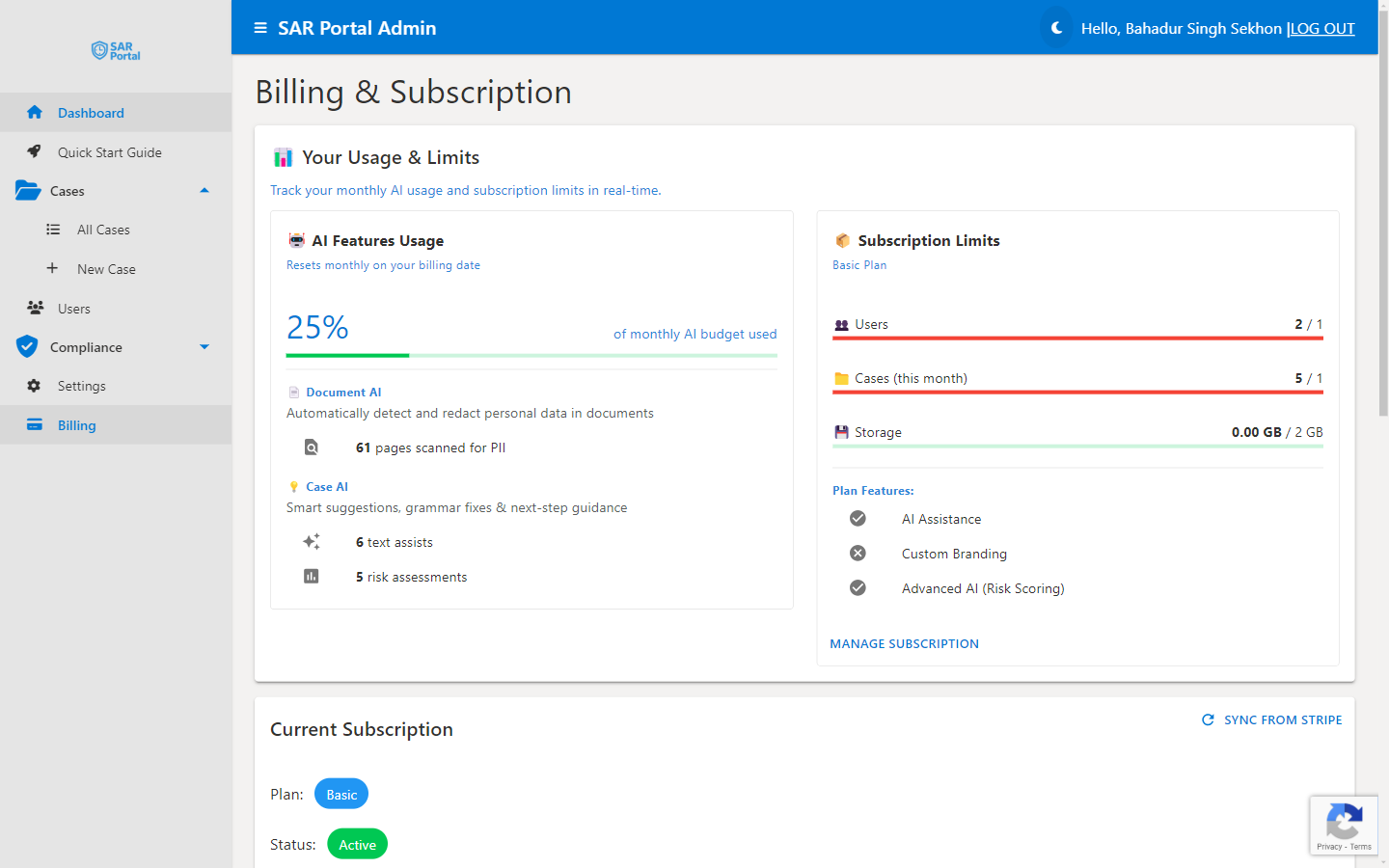
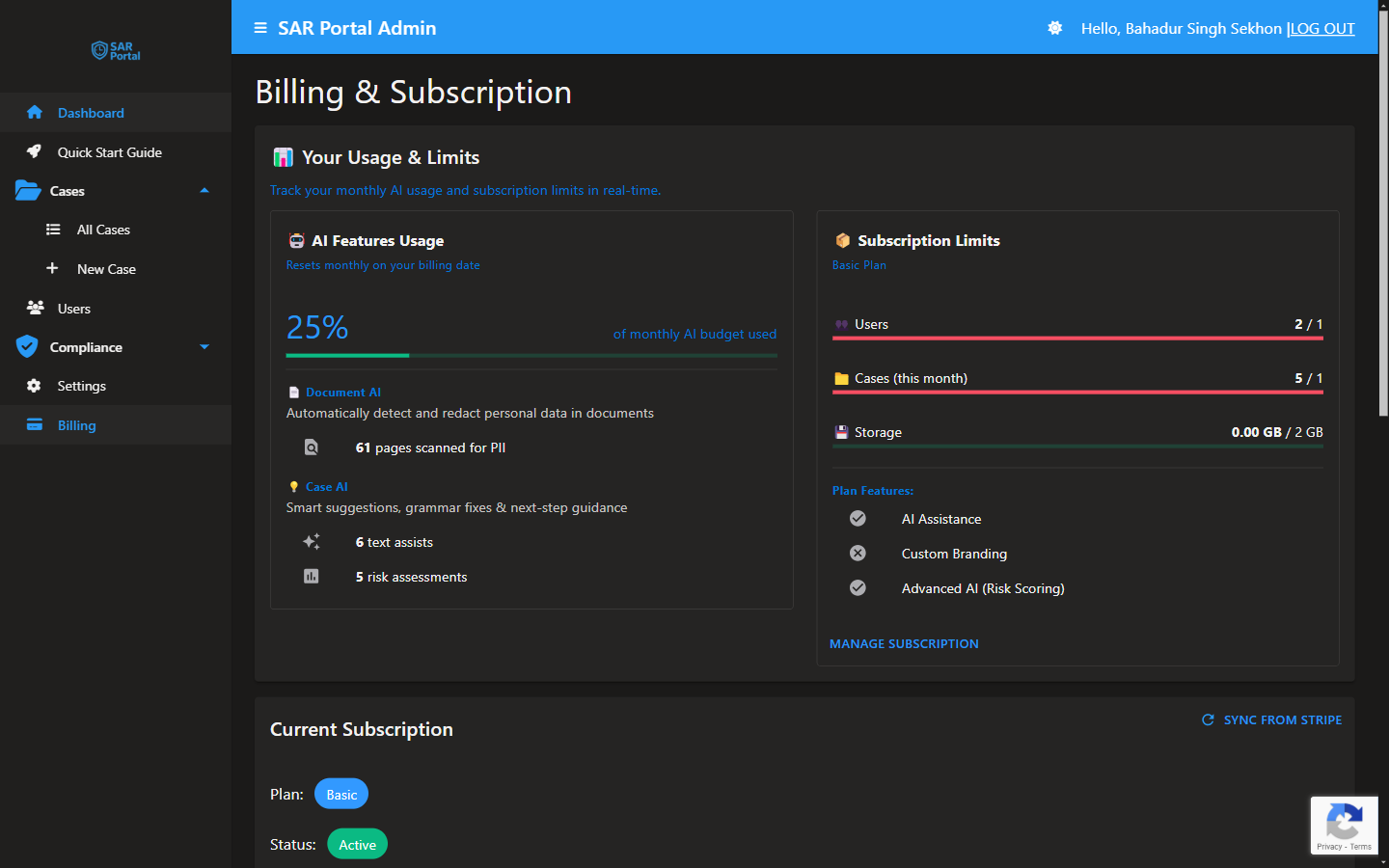
- Click Billing in the sidebar
- View current plan and usage
- Manage payment methods
- View invoices
- Change plans
Payment Methods
Accepted Methods
- Credit cards (Visa, Mastercard, Amex)
- Debit cards
- SEPA Direct Debit (EU)
Updating Payment
- Go to Billing
- Click Payment Methods
- Add new method
- Set as default
- Remove old method if desired
Invoices
Accessing Invoices
- Go to Billing
- Click Invoices
- View/download any invoice
Invoice Contents
- Plan charges
- Usage period
- VAT (if applicable)
- Payment status
VAT
For EU businesses:
- VAT charged based on your country
- Provide VAT number for reverse charge
- Invoices include proper VAT documentation