Case Actions
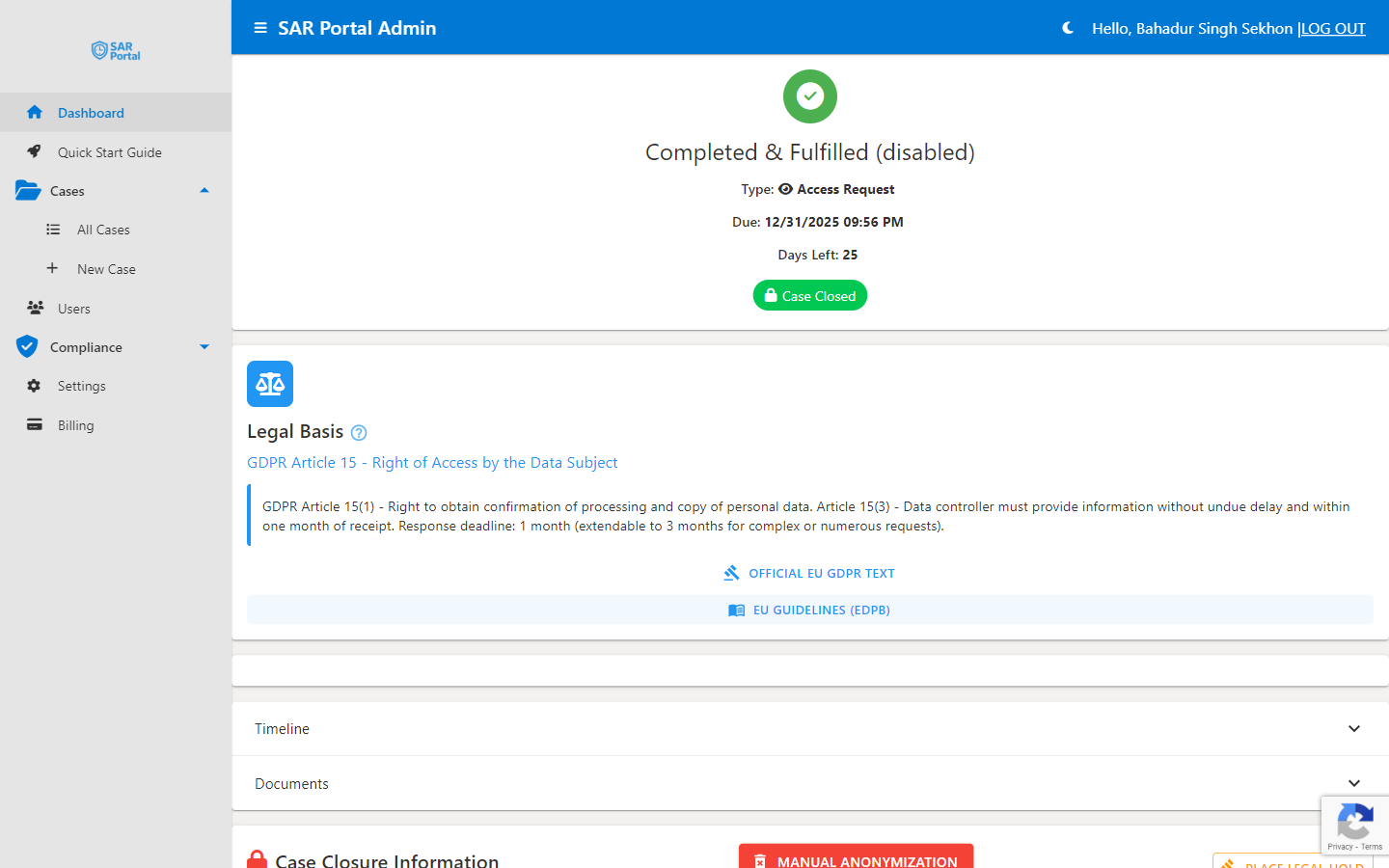
The Case Summary page provides various actions to process and manage each case effectively.
Quick Actions
The Quick Actions panel provides one-click access to common operations:
Mark Verified
Confirm the data subject’s identity has been verified — a single click.
- Click Mark Verified once you’re satisfied the requester is genuine
- Important security step before sharing personal data
- The status changes to Identity Verified and the method is recorded automatically — “Manual review” when an admin clicks the button, or “Portal token” when the request came through the public portal (already email-verified)
- There is no method picker and no verification-notes field; record any extra checks you carried out in the case Notes
- See Identity Verification for what gets recorded
Close Case
Finalize the case with an appropriate closure status (the red Close Case button, shown when you’re able to complete the case).
- Choose a Closure Reason (required): Completed & Fulfilled, Rejected, Withdrawn by Subject, No Data Found, Duplicate Request, or Invalid Request
- If the reason is Rejected or Invalid Request, also choose a required Refusal Ground (Manifestly Unfounded, Excessive Requests, Cannot Verify Identity, National Exemption, Third Party Rights, No Data Held, or Other)
- Add optional Closure Notes (AI-assisted) and attach any final correspondence (file picker — hold Ctrl/Cmd to select multiple)
- The dialog warns you if no identity verification was recorded
- Confirm closure — this is permanent and the case moves to a read-only state
Request Info
Ask the data subject for additional information.
- Compose a message to the subject and optionally attach files (file picker — hold Ctrl/Cmd for multiple)
- System sends an email notification
- Case status changes to “Awaiting Information”
- Subject can respond through email or portal
Submit Info
When a case is in Awaiting Information, a Submit Info section appears so your team can record the information received on the subject’s behalf (and attach files). This section is only shown while the case is awaiting information.
More Actions Menu
The More Actions menu holds:
Extend Deadline
- Request additional time for complex cases
- Choose 30 or 60 days (capped at the 60-day extension allowance GDPR permits)
- Enter a Reason (required)
- The subject is automatically emailed about the extension and the reason
Delivering the Response
SAR Portal does not send the final response package to the subject from inside the app. Once your redacted documents are ready, the controller downloads them and delivers them:
- For portal-submitted requests, the subject tracks status and receives the response through their secure portal link (
app.sarportal.com/subjectaccess?token=...) that they already hold. - For other requests, deliver the downloaded package by a secure channel such as encrypted email or an encrypted file-sharing link.
GDPR Actions (Admin only)
The case page has an admin-only GDPR section. These actions are not available to Case Managers, Reviewers or Read-Only users.
Manual Anonymization
Click Manual Anonymization to remove contact PII while keeping a compliance record. A dialog opens where you:
- Choose a reason and add optional notes
- Tick the mandatory “irreversible” confirmation checkbox
- Optionally choose to notify the subject by email
- Click Confirm Anonymization
Anonymization clears the subject’s contact details (name, email, phone) but preserves a salted email hash so you can still verify a future request relates to the same person. It is irreversible and removes the case’s documents from storage. Use it in line with your retention policy once the response has been delivered.
Legal Hold
Protect a case during a dispute or litigation.
- Place Legal Hold prevents the case from being deleted or anonymized while a matter is ongoing
- Release Legal Hold lifts that protection once the matter concludes
- Use a legal hold whenever a case may be relevant to a complaint, regulatory inquiry, or legal claim
AI Guidance
The AI Guidance section provides intelligent recommendations:
Get AI Recommendations
Click to receive:
- Suggested next steps based on case status
- Risk assessment for the request
- Complexity evaluation
- Relevant GDPR article references
GDPR Reference Links
Quick access to official guidance:
- Official EU GDPR Text - Link to the regulation
- EU Guidelines (EDPB) - European Data Protection Board guidance
Timeline
The Timeline shows a chronological history of all case activities:
Event Types
- Case Opened - When the case was created
- Status Changes - All workflow transitions
- Documents Uploaded - Files added to the case
- Communications - Messages sent/received
- User Actions - Changes made by team members
Timeline Details
Each event shows:
- Date and time
- Description of the action
- User who performed it (for manual actions)
Document Management
Attaching Documents
There is no standalone upload button and no drag-and-drop area. Files are attached only through one of these flows, each of which opens a file picker (hold Ctrl/Cmd to select multiple files):
- Request Info — attach files when asking the subject for more information
- Submit Info — attach files when recording information received (only while the case is “Awaiting Information”)
- Close Case — attach final correspondence as you close
When you attach redactable files, PII detection runs automatically — see AI Redaction below. Supported formats include PDF, Word, Excel and images.
AI Redaction (on attach)
There is no per-document “Analyze for PII” button. Instead, attaching redactable files kicks off the redaction flow automatically:
- PII detection runs on the attached files
- A Review Detected PII screen lists the entities found — the subject’s own PII is shown but not auto-selected
- Select the entities to redact, then click Redact Selected (n)
- Review the redacted result, then Confirm & Attach to Case (n)
- Or choose Skip Redaction to attach the files unchanged
Document Actions
For each attached document:
- View - Open in browser
- Download - Save locally
- Delete - Soft-delete with a reason (admin only, with audit trail) — see below
Deleting and Restoring Documents
Document deletion is admin only and available only while the case is open and the subscription is active.
- Click Delete to open the Delete Document dialog
- Choose a Reason (Wrong File, Duplicate, Sensitive, User Request, or Other) and add optional notes
- The document is soft-deleted: archived and restorable until the case is closed
- Deleted documents show a Restore button while they remain restorable
Case Details Panel
View and edit case information:
Subject Information
- Name, email, phone
- Edit if corrections needed
Request Details
- Request type
- Date received
- Due date
- Current status
AI Risk Level
- Read-only risk level derived automatically by AI (Low, Medium, High, Critical)
- Cannot be set or changed manually — it is guidance, not a control
- Higher-risk cases are highlighted to help you prioritise attention
Notes
- View case notes
- Add additional notes
- Notes are timestamped and attributed
Communication History
Track all correspondence:
- Emails sent to subject
- Responses received
- Portal messages
- Internal notes (not shared with subject)
Risk Assessment
For cases analyzed by AI:
Risk Score
Visual indicator of case complexity:
- Low - Straightforward request
- Medium - Some complexity
- High - Complex or sensitive
- Critical - Requires careful handling
Risk Factors
AI-identified considerations:
- Sensitive data categories involved
- Legal complexities
- Third-party data concerns
- Potential exemptions
Best Practices
Regular Timeline Review
- Check the timeline to understand case history
- Verify all required steps completed
- Identify any gaps or delays
Document Everything
- Add notes for phone calls
- Record verbal communications
- Document decision rationale
Use AI Guidance
- Get recommendations before making decisions
- Review suggested next steps
- Reference GDPR articles when needed
Verify Before Disclosing
- Always click Mark Verified before sharing personal data — the method is recorded automatically
- Note any extra identity checks you carried out in the case Notes
- Especially important for email/phone requests received through unverified channels