Portal Overview
The Public Portal is where data subjects submit GDPR requests directly to your organization. It provides a professional, secure, and compliant way to receive DSARs.
What is the Public Portal?
The Public Portal is a dedicated web page where anyone can submit a data subject request to your organization. Each organization gets a unique portal URL.
Key Features
- Branded Experience - Your company name displayed prominently
- Secure Verification - Email-based OTP verification
- GDPR Compliant - Proper disclosures and consent
- Mobile Friendly - Works on all devices
- Automatic Case Creation - Requests become cases instantly
How It Works
For Data Subjects
- Visit Your Portal - Navigate to your portal link
- Enter Email - Provide their email address
- Verify Identity - Receive and enter an email one-time code (OTP)
- Submit Request - Select request type and provide details
- Confirmation - Receive a reference number
- Track Status - Return to the portal anytime to see progress
- Download Response - When you fulfil the request, securely download the response and files
For Your Organization
- Notification - Receive email when new request arrives
- Case Created - Request automatically becomes a case
- Verified Subject - Email already verified through OTP
- Process Normally - Handle like any other case
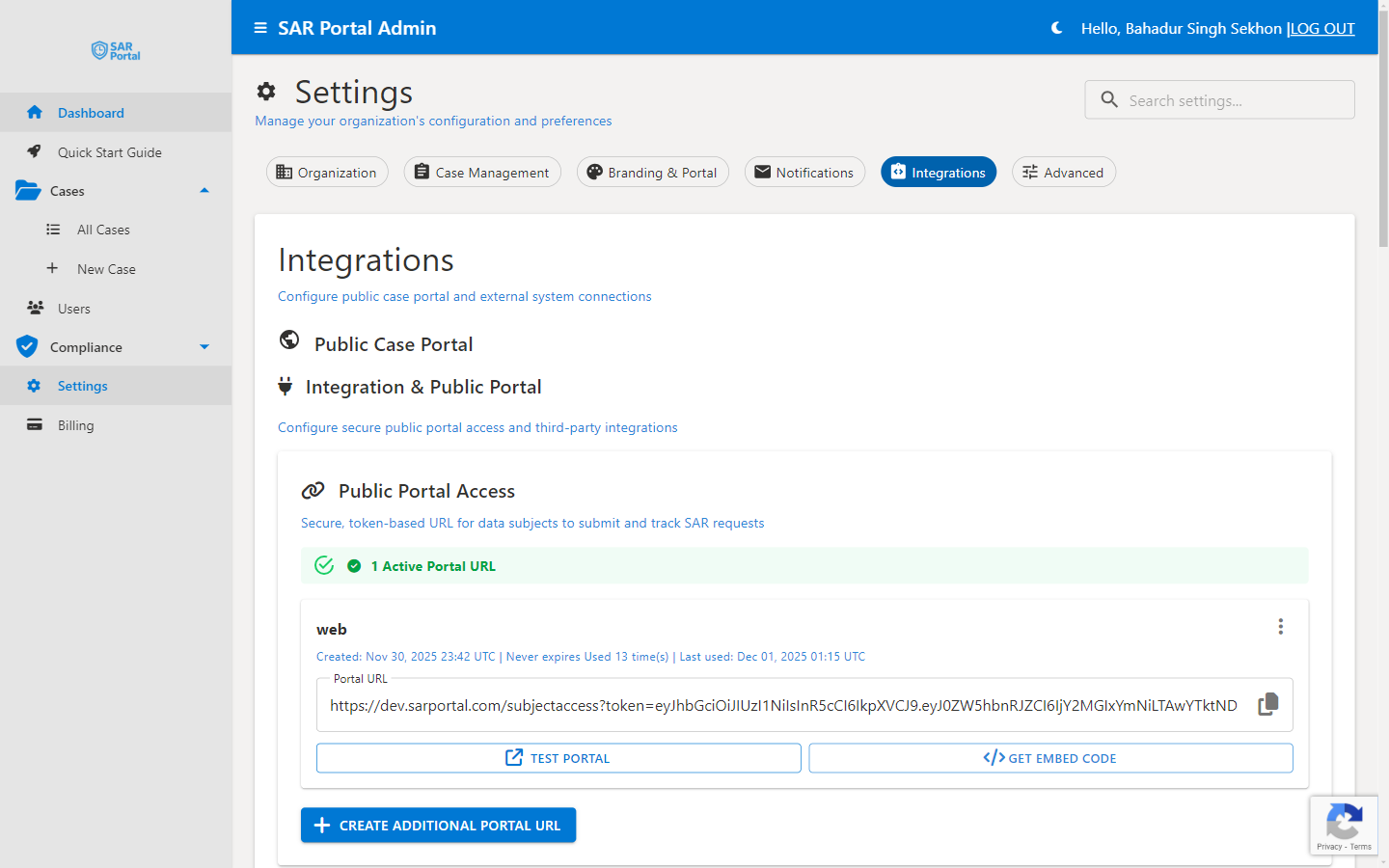
Portal URL
Your portal link is token-based:
https://app.sarportal.com/subjectaccess?token={your-portal-token}
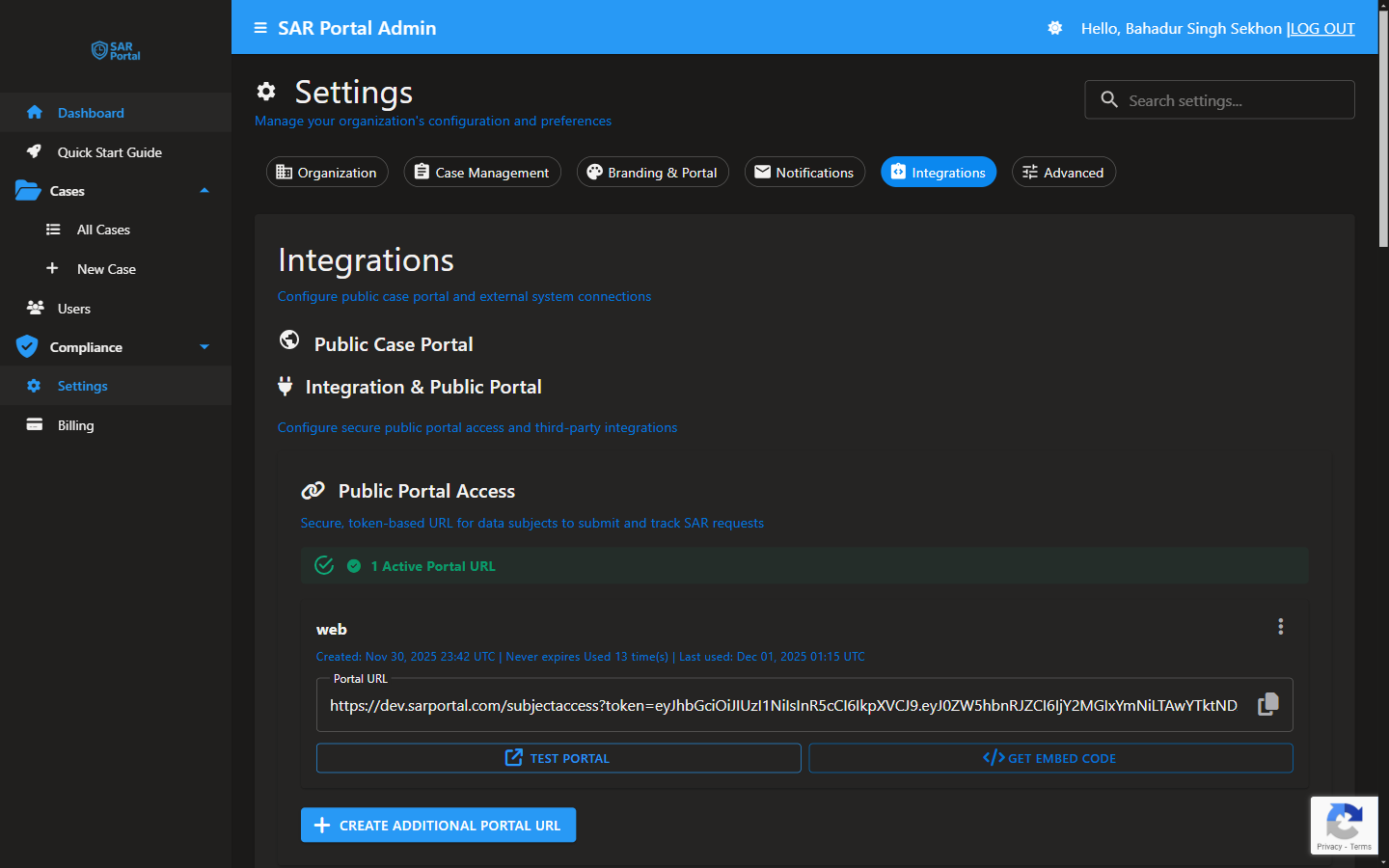
Generate and copy the token (and the full link) in Settings > Integrations. The same link is used by data subjects to submit a request and, later, to track its status and download their response.
Submitting through the portal is optional. You can also log requests that arrive by email or post directly as cases - the portal simply automates intake and verification.
Portal Elements
Header
- Your company name
- “Subject Access Request Portal” label
- Professional appearance
Request Form
- Email input field
- Privacy notice and consent checkbox
- Send verification code button
Footer
- Your organization’s copyright
- Contact email
- GDPR Article 28 compliance notice
- Data processor disclosure
Compliance Features
GDPR Article 28 Notice
The portal displays a clear notice that:
- SAR Portal is the data processor
- Your organization is the data controller
- Processing is under your instructions
Privacy Notice Link
Configurable link to your privacy policy.
Consent Checkbox
Data subjects must acknowledge:
- They’ve read the privacy notice
- They consent to processing for the DSAR purpose
Data Processor Disclosure
Transparent statement about how the request is processed.
Email Verification
Why Verification?
- Confirms the subject controls the email
- Prevents fraudulent requests
- Creates audit trail
- Required before accessing sensitive data
Verification Flow
- Subject enters email address
- System sends OTP (one-time password)
- Subject enters the code
- Email is marked as verified
- Request can proceed
Code Details
- 6-digit numeric code
- Valid for limited time
- Rate-limited to prevent abuse
Request Types Available
Data subjects can select from:
- Access Request (Article 15)
- Erasure Request (Article 17)
- Rectification Request (Article 16)
- Objection (Article 21)
- Restriction (Article 18)
- Portability (Article 20)
- Automated Decision (Article 22)
- Other
Tracking Status & Downloading the Response
The portal isn’t just for submitting - it’s also where the data subject follows their request through to completion.
The Subject’s Journey
- Submit the request on the portal
- Verify via the email one-time code (OTP)
- Track - using the same portal link, the subject sees their request’s current status and reference number
- Download - once you (the controller) mark the request fulfilled, the subject can securely download the response and any files you’ve prepared, straight from the portal
Why This Matters
- The subject self-serves status updates, reducing “any update?” emails
- The response is delivered securely through the verified portal session, not as an email attachment
- Every download is recorded in your audit trail
Delivering the Response
When you complete a case, attach the response documents and mark it fulfilled. The subject is notified and can return to the portal link to download. Access is tied to their verified session, so only the verified subject can retrieve the files.
Adding Portal to Your Website
Privacy Policy Link
Add to your privacy policy:
To exercise your data rights, visit our
<a href="https://app.sarportal.com/subjectaccess?token=YOUR-TOKEN">
  Subject Access Request Portal
</a>
Dedicated Page
Create a page on your website:
<h1>Submit a Data Request</h1>
<p>Use our secure portal to submit GDPR requests.</p>
<a href="https://app.sarportal.com/subjectaccess?token=YOUR-TOKEN"
   class="button">
  Submit Request
</a>
Direct Link
Simply share the URL via email or other channels.
Benefits of Using the Portal
For Your Organization
- Automated case creation
- Pre-verified email addresses
- Structured data collection
- Reduced manual data entry
- Complete audit trail
For Data Subjects
- Easy, guided process
- Professional experience
- Immediate confirmation
- Clear expectations
- Secure communication
Portal vs Manual Requests
| Aspect | Portal | Manual (Email/Letter) |
|---|---|---|
| Case Creation | Automatic | Manual entry required |
| Email Verification | Built-in | You must verify |
| Audit Trail | Complete | Must document yourself |
| Data Collection | Structured | Variable format |
| Processing Speed | Faster | Requires more steps |
Next Steps
- Customize your portal - Add branding
- Embed on your site - Integration options