Advanced Settings
The Advanced settings section contains powerful features for AI-powered document redaction and security configurations. These settings can impact GDPR compliance - proceed with caution.
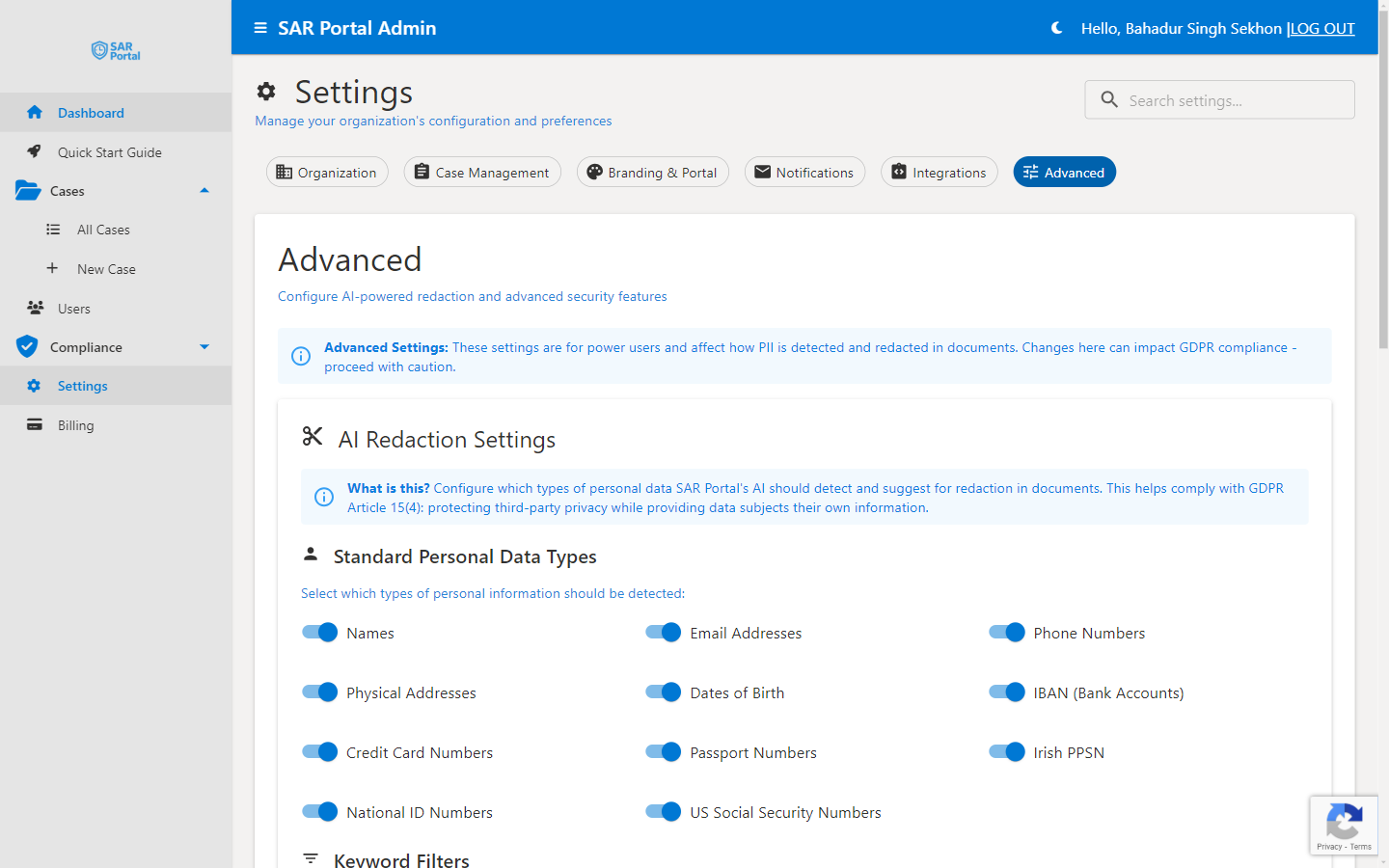
AI Redaction Settings
What Is AI Redaction?
SAR Portal’s AI automatically detects and suggests redaction of personal data in documents. This helps comply with GDPR Article 15(4): protecting third-party privacy while providing data subjects their own information.
How It Works
- Upload documents to a case
- AI scans for personal information
- Detected PII is highlighted for review
- You approve or reject suggested redactions
- Clean copies are generated for disclosure
Standard Personal Data Types
Configure which types of personal information the AI should detect:
Identity Information
| Data Type | Description | Default |
|---|---|---|
| Names | Full names, first/last names | Enabled |
| Email Addresses | Email addresses in any format | Enabled |
| Phone Numbers | Phone numbers in various formats | Enabled |
| Physical Addresses | Street addresses, postal codes | Enabled |
| Dates of Birth | Birth dates in various formats | Enabled |
Financial Information
| Data Type | Description | Default |
|---|---|---|
| IBAN (Bank Accounts) | International bank account numbers | Enabled |
| Credit Card Numbers | Credit/debit card numbers | Enabled |
Government Identifiers
| Data Type | Description | Default |
|---|---|---|
| Passport Numbers | Passport document numbers | Enabled |
| National ID Numbers | National identification numbers | Enabled |
| Irish PPSN | Irish Personal Public Service Numbers | Enabled |
| US Social Security Numbers | US SSN format | Enabled |
Enabling/Disabling Detection
- Go to Settings > Advanced
- Toggle each data type on or off
- Disabled types won’t be flagged for redaction
Detection Sensitivity
PII Detection Sensitivity Slider
A single slider controls how aggressively the AI flags potential personal data. It ranges from 50% to 95%, with four presets:
| Preset | Sensitivity | Behavior |
|---|---|---|
| Maximum | 50% | Flags the most items — catches more, more manual review |
| Thorough | 60% | Errs toward catching borderline matches |
| Balanced | 75% | Default — balances false positives and misses |
| Core | 85% | Flags only higher-confidence matches |
Drag the slider to any value between 50% and 95%, or pick a preset. Lower values flag more content (fewer misses, more to review); higher values flag less (cleaner results, higher chance of a miss).
Always Redact and Never Redact Lists
Two keyword lists give you direct control over what is and isn’t redacted, overriding the AI’s judgement:
Always Redact (Deny List)
Keywords entered here are always redacted whenever they appear in a document — useful for company-specific terms, project code names, or sensitive category words the AI might not recognize as personal data.
Never Redact (Allow List)
Keywords entered here are never redacted, even if the AI flags them — useful for your own organization name, public product names, or terms that should always remain visible.
Custom Business Identifiers
Beyond the standard PII types, you can add custom regular-expression (regex) patterns to detect business-specific identifiers — for example internal customer reference numbers, account codes, or policy numbers in a known format.
How do I add a custom PII detection pattern?
- Go to Settings > Advanced
- Open Custom Business Identifiers
- Click Add Pattern
- Enter a label and a regular expression (e.g.
\bCUST-\d{6}\b) - The editor validates the regex for syntax and for ReDoS (catastrophic-backtracking) safety before it can be saved
- Save — the pattern is applied to new redaction runs alongside the standard detectors
Tier Limits
The number of custom patterns you can save depends on your plan:
| Plan | Custom Patterns |
|---|---|
| Basic | 2 |
| Starter | 5 |
| Pro | 10 |
| Enterprise | Unlimited |
Redaction Options
These toggles control how documents are processed and what is produced:
| Option | What It Does |
|---|---|
| Upload redacted PDF only | Keeps only the redacted PDF copy of a document rather than retaining the original alongside it |
| Import email attachments | When importing emails, also imports and redacts their attachments (on by default; turn off if attachments are supplied separately) |
| Skip inline signature images | Ignores small inline images such as email signature logos so they aren’t processed as documents |
Redaction Mode
| Mode | Behavior |
|---|---|
| Standard | Runs full PII detection and redaction (default) |
| Convert-only | Skips PII detection and simply converts files (e.g. emails to PDF) — for organizations that don’t need redaction |
Best Practices
Start with Defaults
The default detection settings work well for most organizations. Only disable types if you have a specific reason.
Test Before Production
After changing settings:
- Upload a test document
- Review AI detections
- Verify correct behavior
- Adjust as needed
Regular Review
- Review AI accuracy periodically
- Adjust the sensitivity slider based on results
- Update your deny/allow lists and custom patterns as needed
Document Your Choices
Keep records of:
- Why certain types are disabled
- Your deny/allow list entries and custom patterns, and their purpose
- Any non-default settings
Troubleshooting
Too Many False Positives
If the AI flags too much:
- Raise the sensitivity slider toward Core (85%)
- Disable irrelevant data types
- Add over-flagged terms to the Never Redact (Allow List)
Missing Detections
If the AI misses PII:
- Lower the sensitivity slider toward Maximum (50%)
- Ensure the data type is enabled
- Add the term to the Always Redact (Deny List), or create a Custom Business Identifier pattern
- Contact support for pattern updates
Performance Issues
Large documents may process slowly:
- Normal for documents with many pages
- Processing happens in background
- Status shows in document list
Related Settings
| Section | What It Does |
|---|---|
| Case Management | Configure request types, statuses, and retention |
| Integrations | Public portal, billing, email, and sign-in |
| Organization | Company profile settings |