Branding & Portal
The Branding settings let you customize how SAR Portal appears to your data subjects and team.
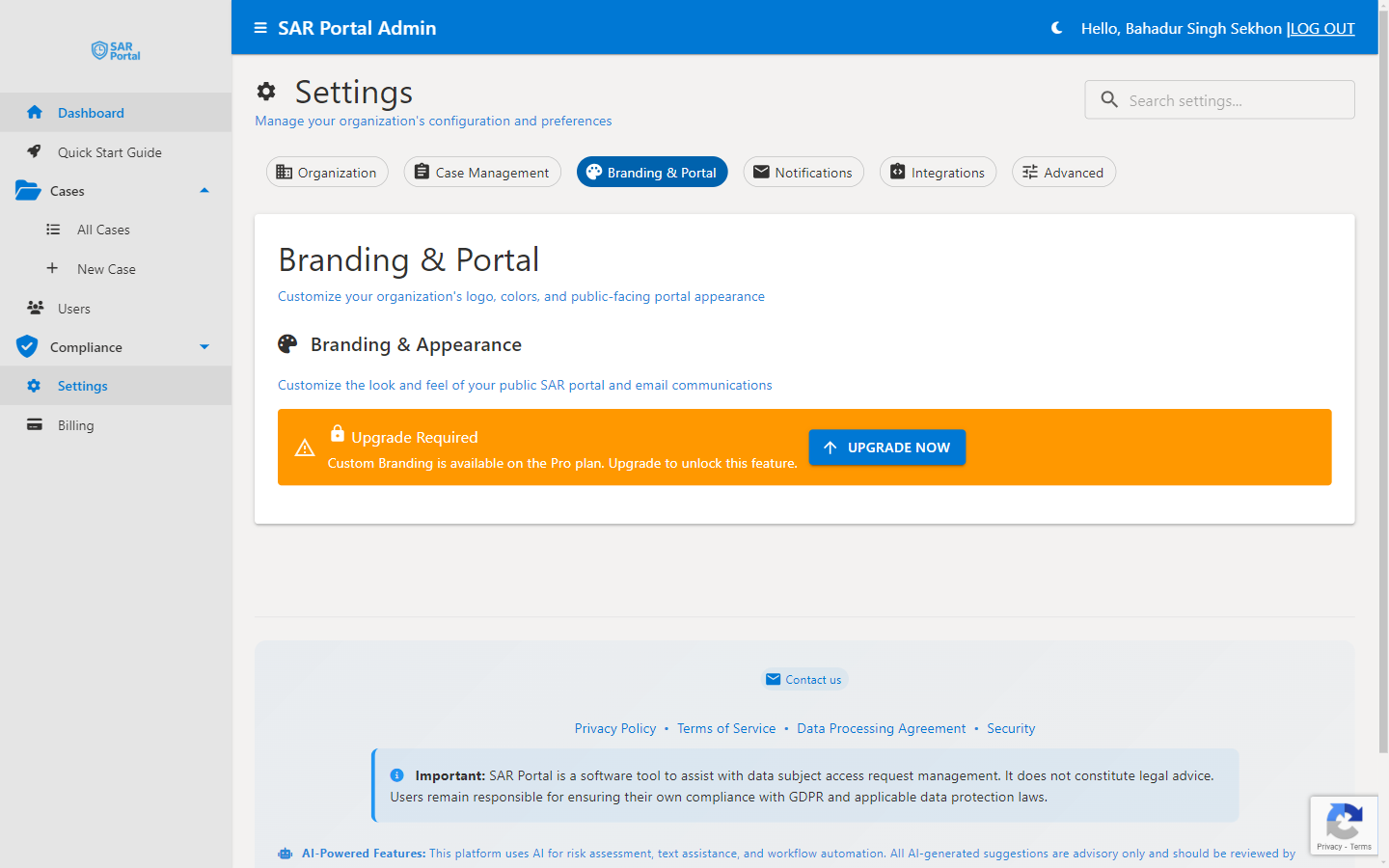
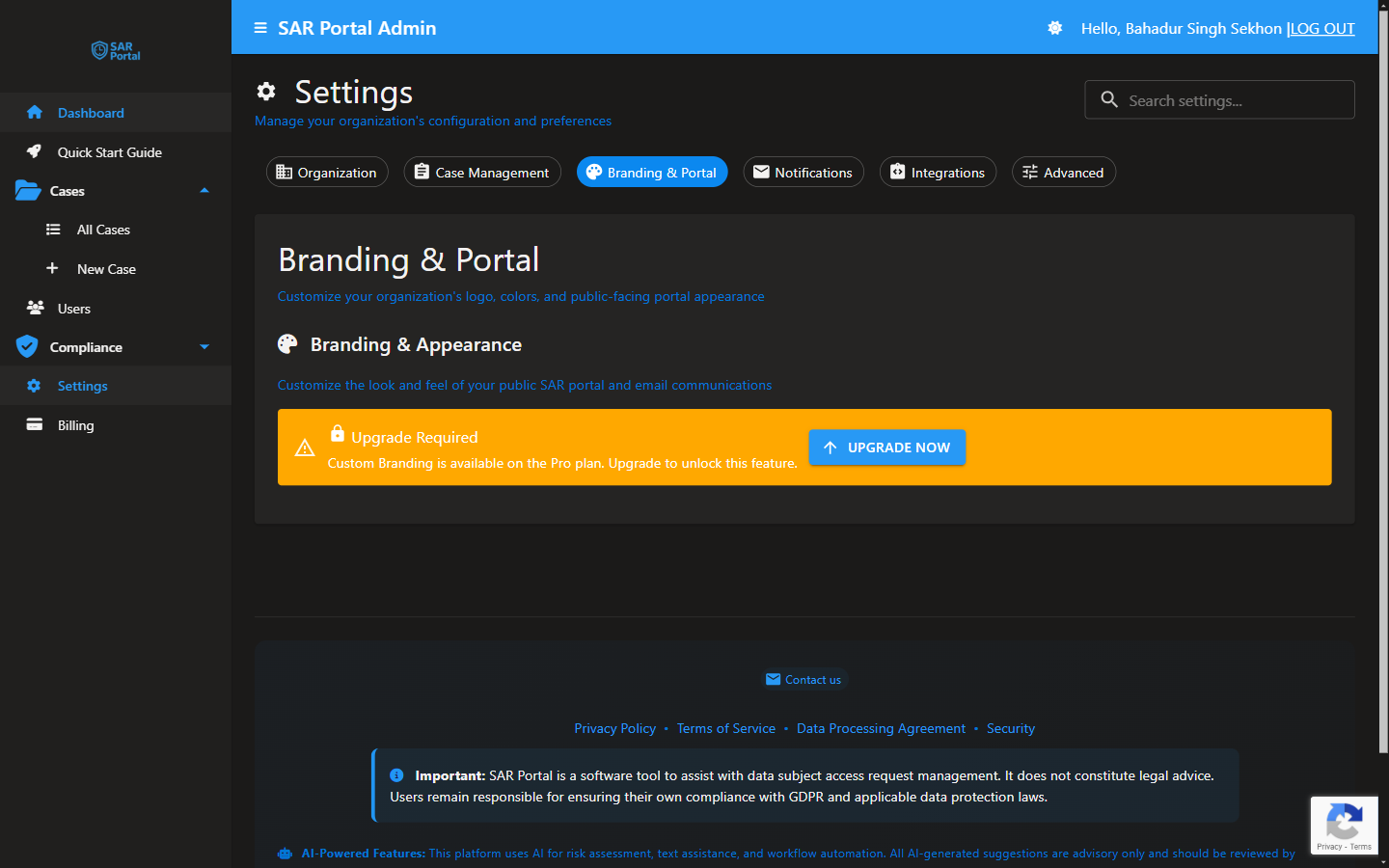
Accessing Branding Settings
- Go to Settings in the sidebar
- Click the Branding tab
Logo
Upload Your Logo
- Click the upload area or drag your logo file
- Supported formats: PNG, JPG, SVG, GIF, WEBP, BMP, TIFF, ICO
- Recommended size: 400x120 pixels (or proportional)
- Maximum file size: 2 MB
- Transparent backgrounds work best
Logo Display
Your logo appears in:
- Public portal header
- Email communications
Logo Tips
- Use high resolution for clarity
- Ensure it is readable on both light and dark backgrounds
Primary Color
Your main brand color, used for buttons, links, highlights, and accents.
How to Set:
- Enter a hex color code (e.g., #667eea)
- Or use the color picker
- Save changes
Color Recommendations
- Choose a color with good contrast
- Avoid very light colors (poor visibility)
- Match your website branding
Navigation Bar Color
Sets the background color of the top navigation bar in the admin dashboard, letting the interface match your brand.
Font Family
Choose the font family used across your branded interface and emails, so text matches your house style.
Email Footer
Customize the footer content that appears at the bottom of automated emails:
- Company name and address
- Contact information
Managing Your Public Portal
The public portal URL and its settings are not configured here. Portal token management — including testing the portal, generating embed code, creating additional URLs, and setting expiry — lives in the Integrations tab. The portal submission URL has the format:
https://app.sarportal.com/subjectaccess?token={token}
Best Practices
Brand Consistency
- Match your website colors
- Use your official logo version
- Maintain a professional appearance
Accessibility
- Ensure sufficient color contrast
- The logo should be recognizable
- Text should be readable