User Management
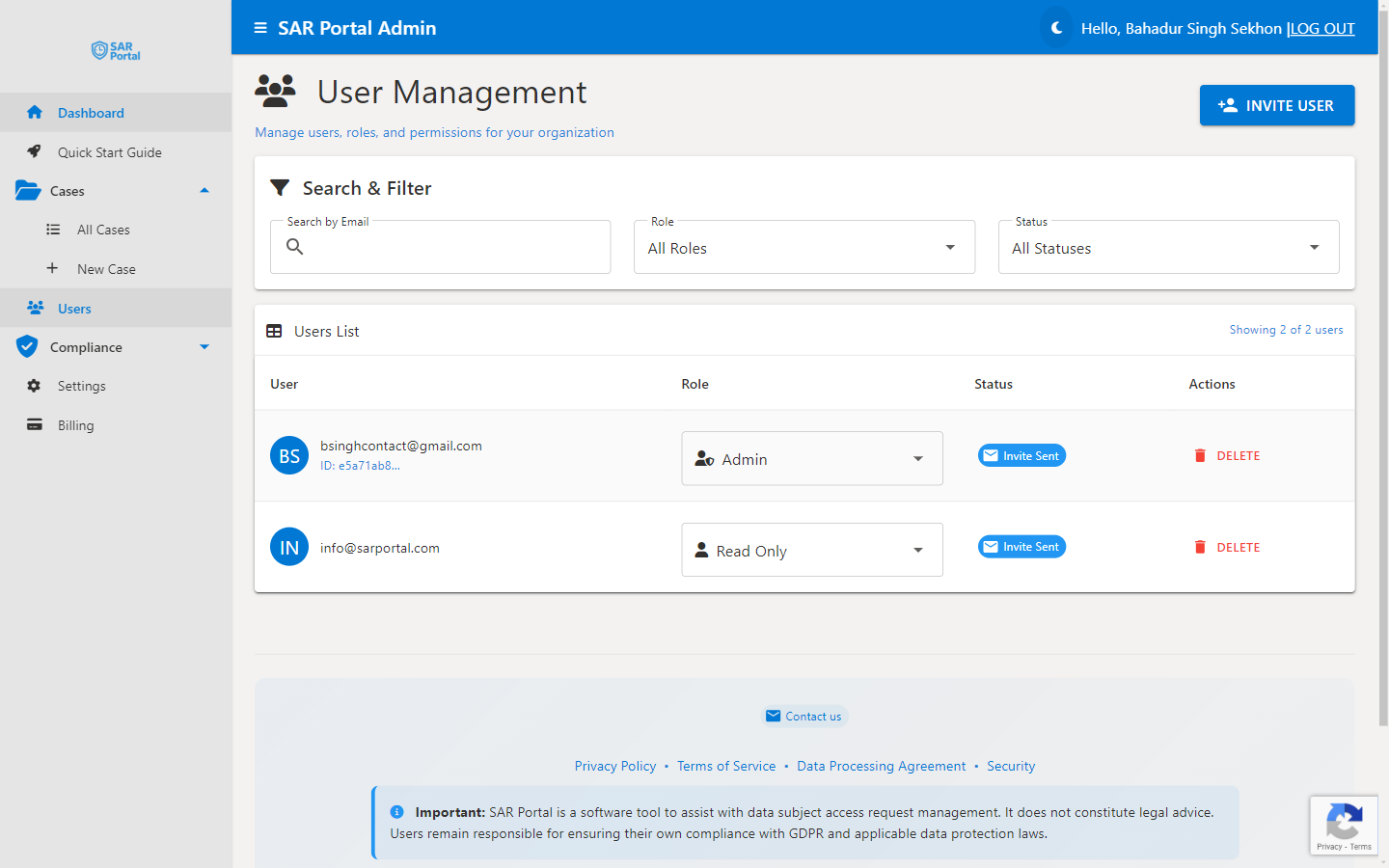
User management allows you to invite team members and control their access to SAR Portal.
Accessing User Management
- Click Users in the sidebar
- View all users in your organization
- Use search and filters to find specific users
User List
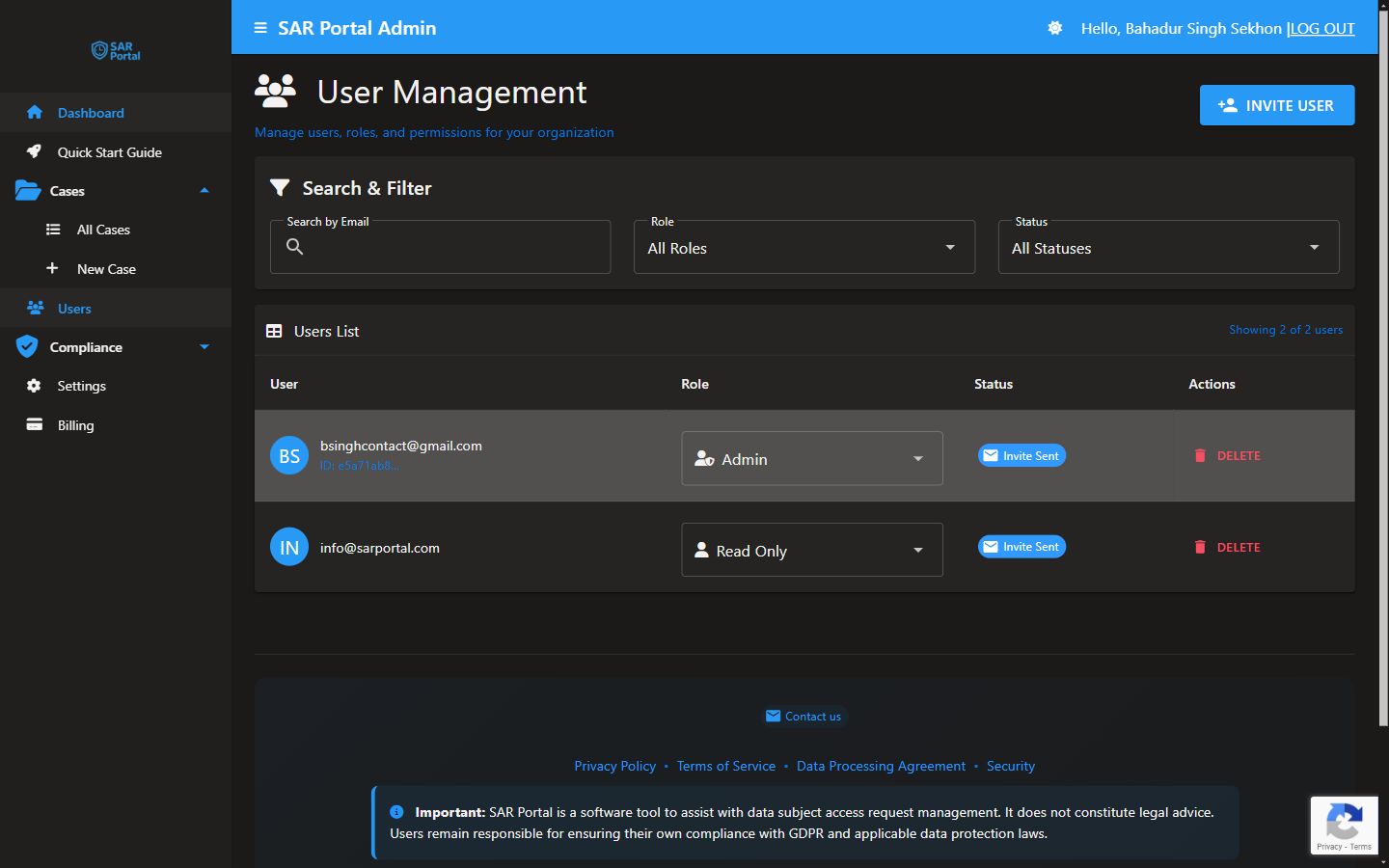
The user list shows:
- User email and avatar
- Role assignment
- Account status (Active, Pending, Deactivated)
- Available actions
Inviting Users
Send an Invitation
- Click Invite User button
- Enter the user’s email address
- Select their role
- Click Send Invitation
What Happens Next
- User receives invitation email
- They click the activation link
- They set up their account
- They gain access based on their role
Invitation Expiry
Invitations expire after 7 days. If expired:
- Delete the pending invitation
- Send a new one
User Statuses
| Status | Meaning |
|---|---|
| Active | User can log in and use the system |
| Pending | Invitation sent, not yet accepted |
| Deactivated | User access revoked |
Managing Existing Users
Change Role
- Find the user in the list
- Click the role dropdown
- Select the new role
- Change is immediate
Deactivate User
- Find the user
- Click Deactivate or the actions menu
- Confirm the action
Deactivated users:
- Cannot log in
- Retain their data for audit purposes
- Can be reactivated if needed
Delete User
- Find the user
- Click Delete
- Confirm deletion
Deleted users:
- Completely removed from organization
- Audit entries are anonymized
- Cannot be undone
Admin Protection
You cannot delete or deactivate the last admin. Ensure another admin exists before removing yourself.
User Limits
Your plan determines maximum users:
| Plan | User Limit |
|---|---|
| Basic | 1 user |
| Starter | 3 users |
| Pro | 10 users |
If at limit:
- Deactivate unused accounts
- Or upgrade your plan
Search and Filter
Search by Email
Type in the search box to find users by email address.
Filter by Role
Select a role to show only users with that role.
Filter by Status
View only Active, Pending, or Deactivated users.
Best Practices
Principle of Least Privilege
- Assign the minimum role needed
- Review roles periodically
- Promote only when necessary
Regular Audits
- Review user list quarterly
- Remove departed employees promptly
- Verify active users still need access
Secure Invitations
- Verify email addresses before inviting
- Follow up on pending invitations
- Don’t share invitation links
Related
- Roles & Permissions - Understanding role capabilities